
Calling For Backup
1. Who?
Who should have a backup routine?
If you've ever downloaded music, taken pictures of your kids, or prepared your own taxes, you should really consider backing up that data so you're never left without.
2. Why?
Why do you need a backup plan?
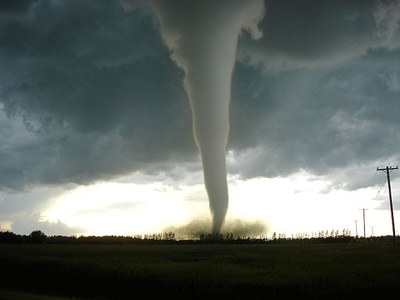
In Oklahoma, we're no strangers to tornadoes and other natural disasters. However, burglaries, ransom-ware, toddlers, and hardware failures can also cause data loss.
3. I Have A Service For That
What about third party services?
- Google docs
- Dropbox
- iTunes
While those services can be great, they won't protect you from bankruptcy, hackers, or if they ever decide to start charging subscription fees for their services. Furthermore, it's becoming the norm that your data winds up in the hands of others, either by leaks or by the service selling your information. A good rule of thumb is to not put anything on the internet that you wouldn't want published on the front page of a newspaper.
If those are acceptable risks for you and your family, then by all means use them and feel free to check your twitter feed throughout the rest of this presentation.
4. Media
What should I use to backup my stuff?

All media has a limited shelf life. However, some are better than others. Generally speaking, external hard drives are better than burned DVDs, and stone tablets are better than external hard drives. With that said, M-discs tout a pretty outstanding shelf life. Usually it comes down to weighing convenience against risk.
5. Diversify
The more the merrier.

Just like with your investment portfolio, the best plan is to use several different types and brands of media. For instance, burning your files on to a stack of blu-ray discs, copying them to a flash drive, uploading them to a cloud service, and storing them on an external hard drive will virtually guaranty that you won't lose your data if one or more of the backups goes bad. However, that can be a lot to keep up with and hinder your ability to binge-watch "House of Thrones is the new Black" or "The Real Housewives of Guatemala".
For me, I decided on 2 rugged-ized external hard drives purchased at different times to help prevent any assembly line issues from taking them out at the same time.
6. Location
Where do I put it?

This is another scenario where you'll need to balance convenience with risk. You definitely don't want to keep all of your eggs in the same basket, but you don't want your backups too far away either.
Personally, I keep one backup copy in a fire and water proof safe at home, and the other backup copy at work a dozen miles away. If you happen to live next door to your work, this probably isn't the best idea for you in case of a wild fire or mile-wide tornado. Other options could be your friends or family's house, or even a safety deposit box at your bank. Another tip is to rotate them each time you perform another backup, to make sure that all of your backup copies are always in sync.
7. Disconnected
Go off-grid to save the planet, and yourself.

A lot of people will use always-available media for their backups, such as a network-attached storage device (NAS) or Dropbox. This makes it easy to take backups often, and even automate them. However, viruses and ransom-ware make this a risky setup. If you can easily connect to your backup, so can a hacker. They won't just delete your files, they will take pleasure in deleting your backups too. Even if you think you're safe from bad people, it's not unthinkable that lightning will strike, your cat will walk across the keyboard (and they're real good at finding that delete key), or that you'll accidentally save over a file after a glass of wine and your automation will blissfully write over your backup copy too.
If you're going to have a backup copy that's easy to reach, make sure you have another copy that takes some manual intervention to connect to.
8. Encryption
Leave something to the imagination.
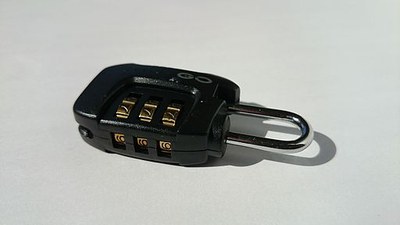
Be prude with your data. Don't let everyone see what you've got. If you've done the wise thing and stored one of your backups off-site, be sure that you encrypt your data in the process. You wouldn't want a nosy coworker snooping through your backup and finding your top-secret barbecue recipe. You also wouldn't want a thief to stumble upon your bank account information.
With encryption, even if the location of one of my backups gets hit by a tornado and drops my hard drive in the land of Oz, I won't have to worry about the Wicked Witch of the West finding it and stealing my plans for world domination.
There are several secure tools available regardless of what type of computer you use. Geeks tend to recommend VeraCrypt, because it is free, relatively easy to use, secure from everyone except maybe the NSA, and works on pretty much any hardware you throw at it. So as long as your last name isn't Snowden, you might want to add it to your list to evaluate when picking an encryption tool.
9. Trusting the Cloud
How well do you actually know Zeus?

As I mentioned before, cloud services have their pros and cons. They're easy and cheap, but susceptible to stock market crashes and the problems that come along with being always available. With encryption in combination with diversification, these issues all but vanish.
The one caveat is to make sure that you don't trust the cloud service to do the encryption for you. Even if a service says they'll encrypt your data before uploading it to Mount Olympus, go ahead and encrypt it yourself first anyway. The point is, remove the need for trust altogether.
10. Schedule
Don't even trust yourself

A backup is only as good as the last time you took a snapshot. Don't trust yourself to remember to back up your data as often as you should. Set repeating calendar reminders, or build some sort of Rube Goldberg machine to automate your connections, encryption, backups and rotations.
For me, I try to take a new snapshot every month, or more often if the situation warrants. For instance, if you just purchased copies of your wedding photos, or finished your dissertation. Adjust the frequency to your needs.
11. Bit Rot
No good deed goes unpunished

Bit rot is not very well known outside of geekdom. It's a process over time where bits of data get randomly flipped from ones to zeroes or vice versa, even on perfectly good hard drives. You could set up a perfect backup scheme only to find your files corrupted in a few years when you actually need to use your backup. This is because you're hard drive may have encounter bit rot that you didn't notice, and then synchronized that corrupted file to all of your backups.
Catching bit rot is a fairly simple concept, but it can add a lot of time and complexity to your backup routine. To catch bit rot, you can use what's called a hashing algorithm. An easy way to understand what that means, is to imagine your computer adding up all of the ones and zeroes in your file to arrive at some number, known as the hash. You can then compare that hash to the hash of your backup. If the hashes are different, you'll know that one of them has been corrupted.
There are some backup tools which can watch for bit rot as they go, but it will slow the process down since it has to read each copy of each file in its entirety. If feasible, it's a good idea to check for bit rot each time you backup, however, it might also be acceptable to only check a few times each year. Set a reminder for this process as well.
12. Restoration
It's not a backup until you've tested it

In addition to bit rot, there are other factors which may make a backup go bad, such as the backup media becoming read-only and the backup tool not realizing it, or upgrading your software only to realize it can't open the files created by your old version. It's a common practice with server administrators to never count on a backup until a restoration has been tested. This is a good idea for you as well.
Periodically, you should pick several files at random and try to open them. Set reminders to do this too.
13. Conclusion
Any backup is better than no backup

While following these practices will reduce your risk of ever losing a file, it should be noted that any backup routine you come up with is better than not doing it at all. It might not protect you from everything, but without it, you're just asking for trouble from Murphy's Law.

